Connecting to Snowflake
Connect Veezoo to Snowflake by locating your account URL, configuring key-pair authentication, and using the troubleshooting steps below for common issues.
Finding the account URL
Find your account URL in Classic Console
You can find your account URL in the URL of your browser.

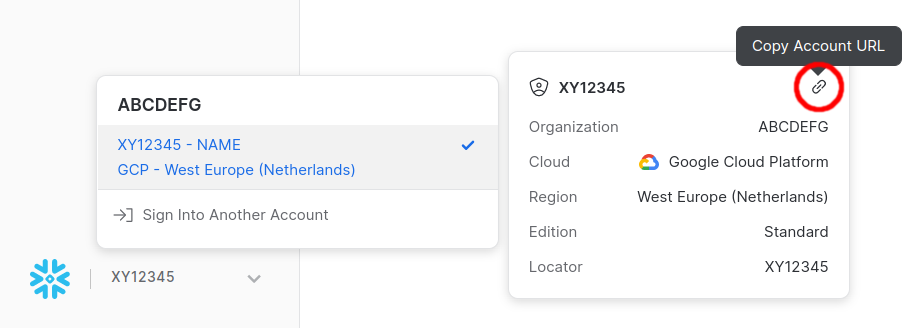
Find your account URL in Snowsight
You can find your account URL in the bottom left.
Configuring key-pair authentication
The supported way to authenticate with Snowflake is using a key-pair. Generate a key-pair following the Snowflake documentation.
Once the keys are created and the public key is added to the database user, paste the raw text of the
private key into the Private Key field in the connection settings. If the key is encrypted
using a passphrase, enter the passphrase in the Passphrase field.
Troubleshooting key-pair authentication
If you are having trouble connecting to Snowflake using key-pair authentication, follow these steps to verify your configuration is correct.
1. Verify the public key is registered on the Snowflake user
The public key must be registered on the Snowflake user that Veezoo uses to connect. Run the following command in Snowflake to set the public key:
ALTER USER <username> SET RSA_PUBLIC_KEY='MIIBIjANBgkqh...';
Replace <username> with your Snowflake username and paste your public key content (without the -----BEGIN PUBLIC KEY----- and -----END PUBLIC KEY----- headers).
To verify the key is correctly assigned, run:
DESC USER <username>;
Look for the RSA_PUBLIC_KEY_FP field in the output. If it shows a value (a fingerprint starting with SHA256:), the public key is registered. If it's empty, the key has not been set.
2. Ensure the authentication policy allows key-pair authentication
Snowflake authentication policies can restrict which authentication methods are allowed. If your organization uses authentication policies, ensure that key-pair authentication is permitted for the user.
To check if an authentication policy is assigned to the user:
SHOW AUTHENTICATION POLICIES ON USER <username>;
If a policy is assigned, verify it allows RSA_KEYPAIR as an authentication method. You can view the policy details with:
DESCRIBE AUTHENTICATION POLICY <policy_name>;
To allow key-pair authentication, the policy must include RSA_KEYPAIR in its allowed authentication methods. Contact your Snowflake administrator if you need the policy updated.
3. Test key-pair authentication from the command line
You can verify that key-pair authentication works outside Veezoo using SnowSQL (Snowflake's CLI tool):
snowsql -a <account> -u <username> --private-key-path <path/to/private_key.p8>
If this command connects successfully, your key-pair configuration is correct on the Snowflake side. If it fails, review the error message for clues about what might be misconfigured.
4. Common issues checklist
- Key format: Ensure you are using the correct key format. Veezoo expects the private key in PEM format (the raw text including
-----BEGIN PRIVATE KEY-----and-----END PRIVATE KEY-----or the encrypted variant). - Key algorithm: Snowflake supports RSA keys. Ensure your key was generated using RSA (not EC or other algorithms).
- Key size: Snowflake requires a minimum 2048-bit RSA key.
- User status: Verify the Snowflake user is not locked or disabled.
- Passphrase: If your private key is encrypted, make sure you entered the correct passphrase in the connection settings.