Microsoft Azure Identity Provider
The following guide shows how to configure Microsoft Azure as a SAML identity provider for Veezoo.
Create an enterprise application
-
Log into the Microsoft Azure Microsoft Azure Portal
-
In the sidebar, navigate to
Azure Active Directorythen toEnterprise Applications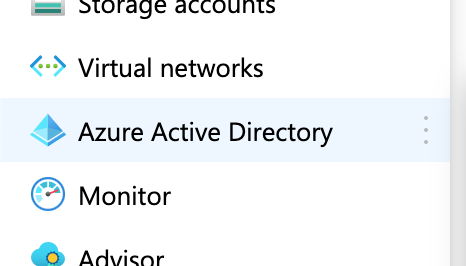
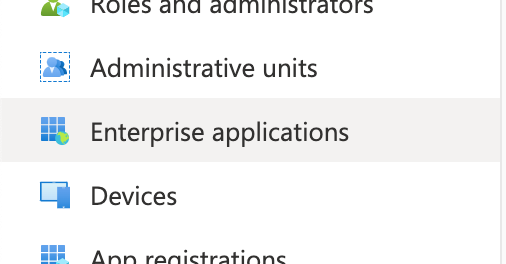
-
Click on
New Applicationthen onCreate your own application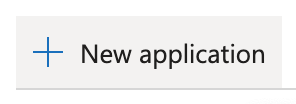
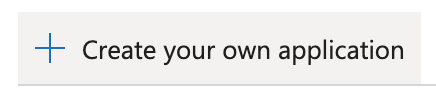
-
Enter a name for the application and click on
Create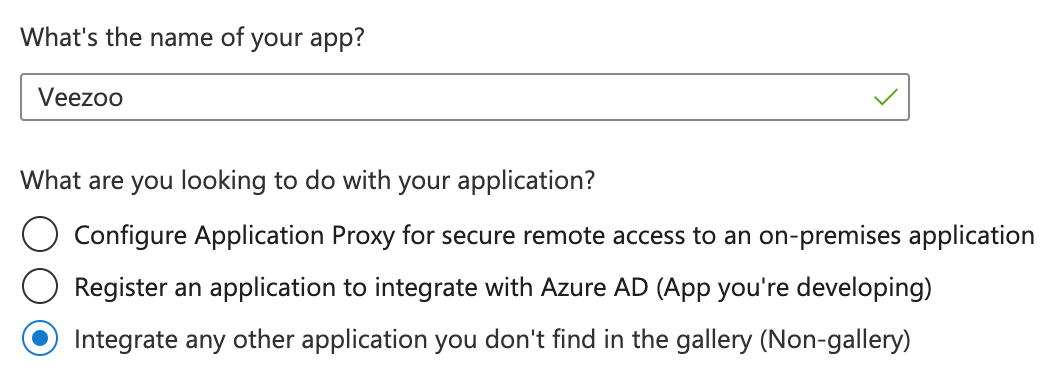
Configure single sign-on
-
Open the enterprise application created above and click on
Setup single sign onthen onSAML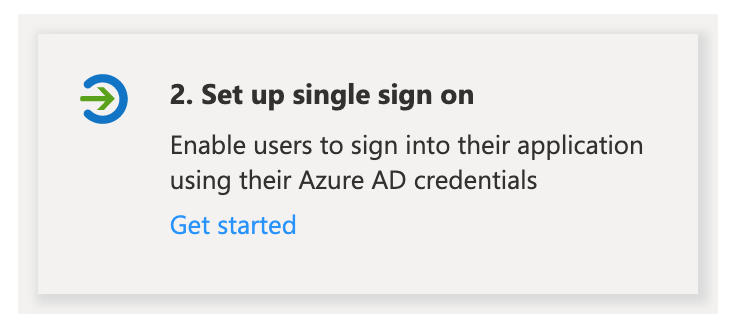
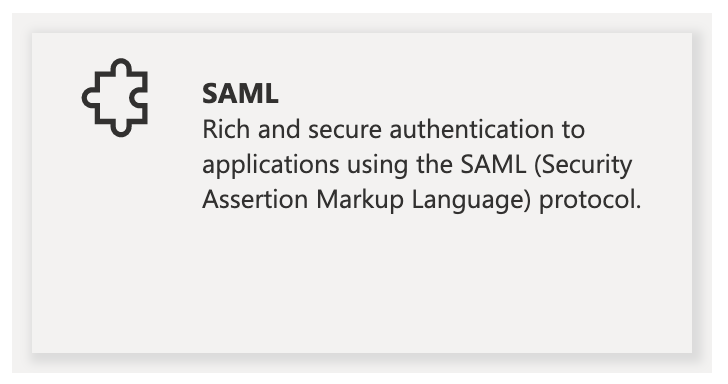
-
In the
Basic SAML Configurationsection, click onEditto edit the configuration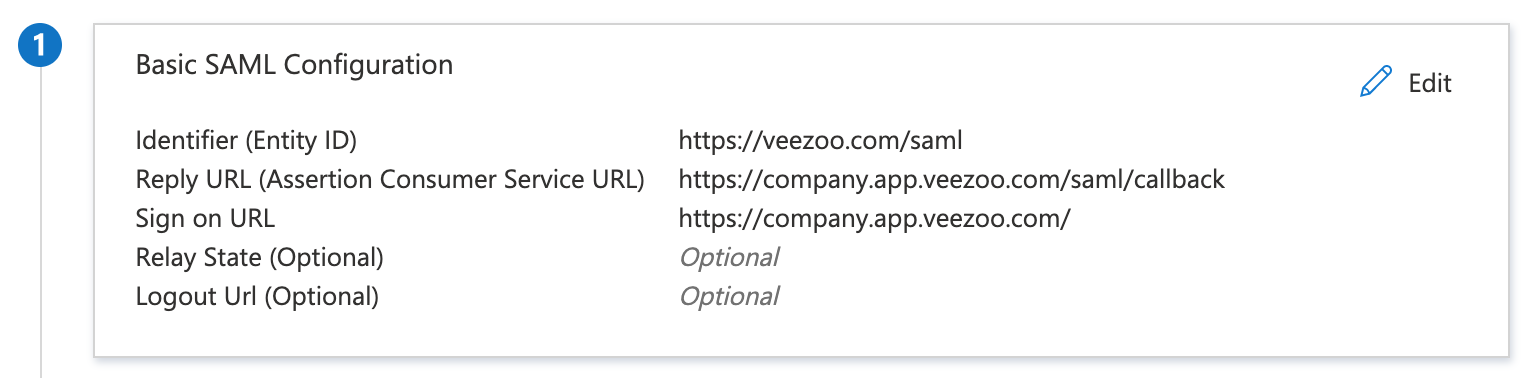
- set the Identifier to:
https://veezoo.com/saml - set the Reply URL to:
https://<subdomain>.app.veezoo.com/saml/callback - set Sign on URL to:
https://<subdomain>.app.veezoo.com/
Don't forget to replace
<subdomain>by the actual subdomain attributed to your organization. The above information is available in and can be copied from Veezoo Admin, see here. - set the Identifier to:
-
In the
Attributes & Claimssection you can optionally configure the attributes to be included in the SAML assertions that are sent to Veezoo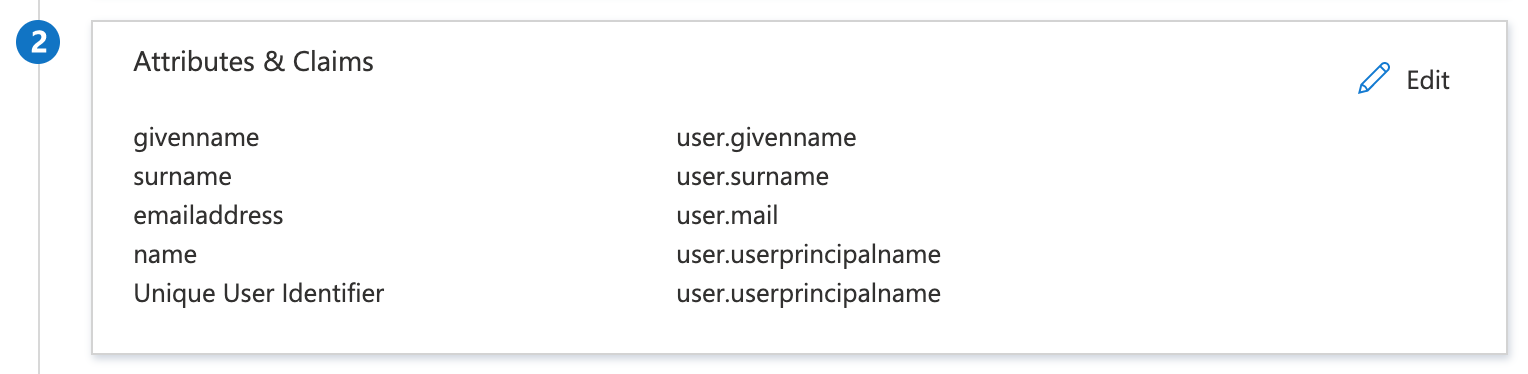
These attributes can be used when configuring user attributes in Veezoo.
-
Click on
Saveand close the editing form
-
Download the
Federation Metadata XMLfrom theSAML Signing Certificate
The contents of this file need to be entered when configuring the identity provider in Veezoo.
Provide access to users
-
Open the enterprise application created above and click on
Assign users and groups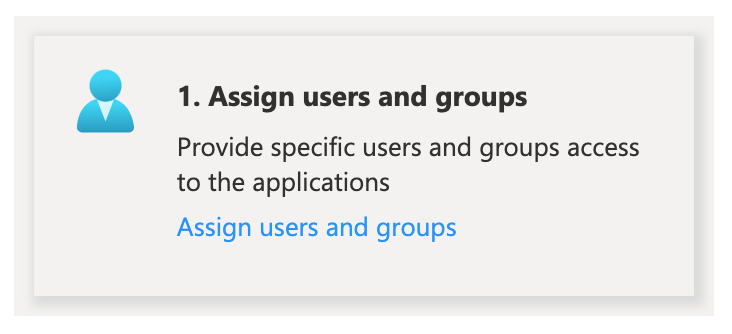
-
Click on
Add user/group
-
Select the users or groups to grant access to Veezoo and click on
Assign
Configure Veezoo
Configure and enable single sign-on in Veezoo Admin according to the documentation.