
Connecting to Google BigQuery
This guide walks you through connecting Veezoo to Google BigQuery. You'll learn how to set up the required IAM permissions, create a service account with a JSON key, and configure the connection in Veezoo. Before you begin, ensure you have access to a GCP project and the ability to create service accounts with the necessary BigQuery roles.
Required Permissions
Connecting to BigQuery requires a Service Account with a valid JSON key and the following IAM roles:
| Role | Purpose |
|---|---|
BigQuery Data Viewer (roles/bigquery.dataViewer) | Read access to tables and views |
BigQuery Metadata Viewer (roles/bigquery.metadataViewer) | Access to dataset and table metadata |
BigQuery Job User (roles/bigquery.jobUser) | Permission to run queries (create jobs) |
Creating a Service Account
Step 1: Navigate to Service Accounts
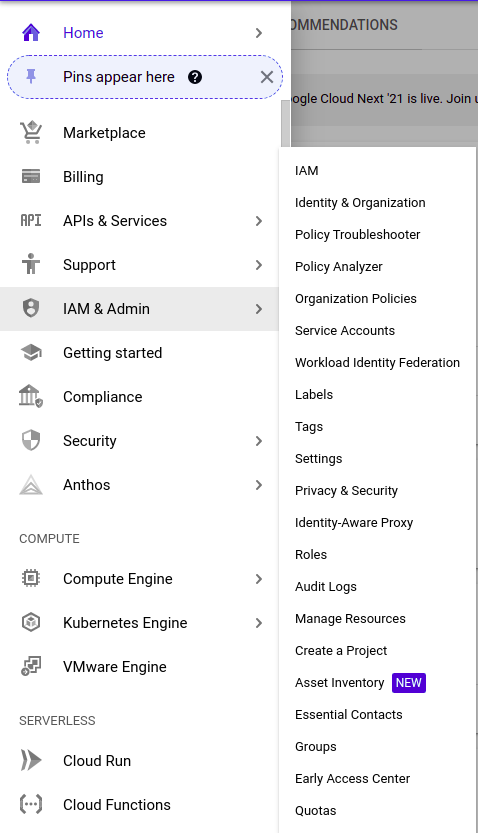
Go to Google's Cloud Console and navigate to IAM & Admin → Service Accounts:
Step 2: Create a new Service Account

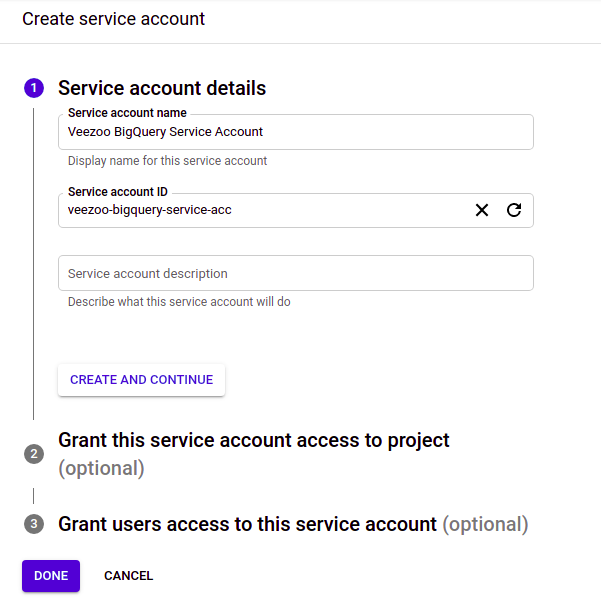
Step 3: Choose a name and ID for the Service Account
Step 4: Add the required permissions
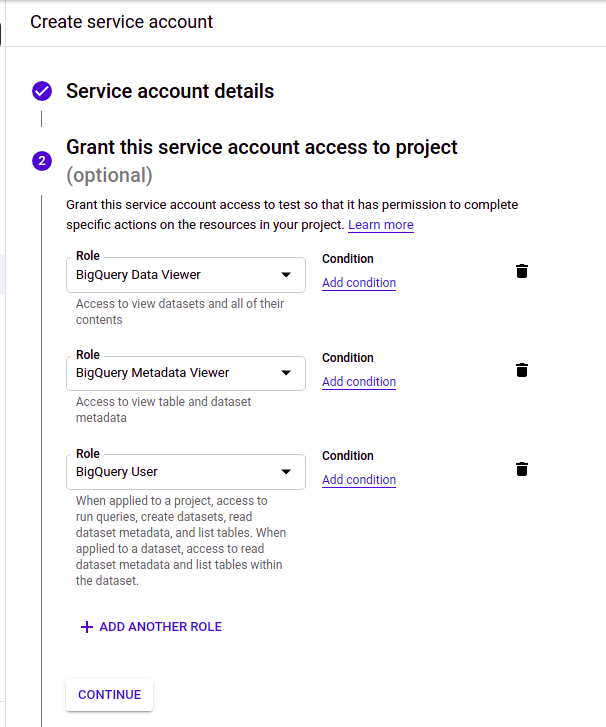
Grant the Service Account the required roles listed above (BigQuery Data Viewer, BigQuery Metadata Viewer, and BigQuery Job User or BigQuery User):
Step 5: Create a JSON key
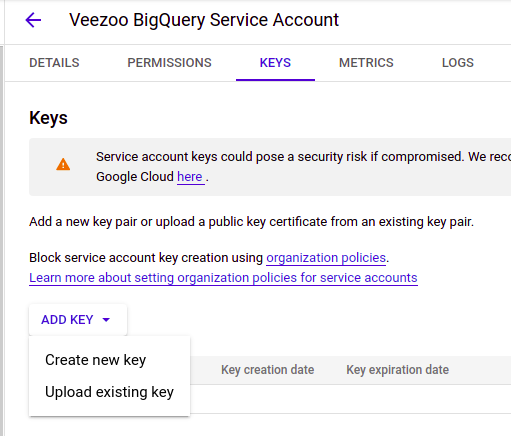
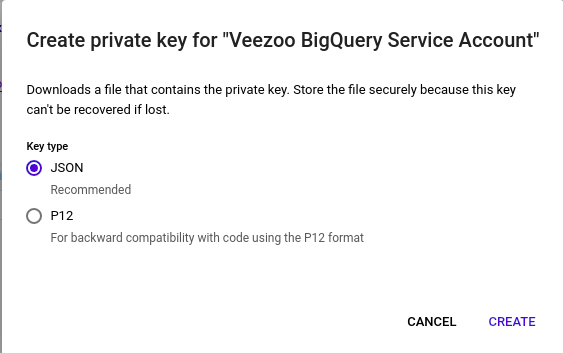
After creating the account, select it and go to Keys to create a new key:
Choose JSON as the key format:
Step 6: Configure Veezoo
Create a new Knowledge Graph in Veezoo and add all the necessary information:
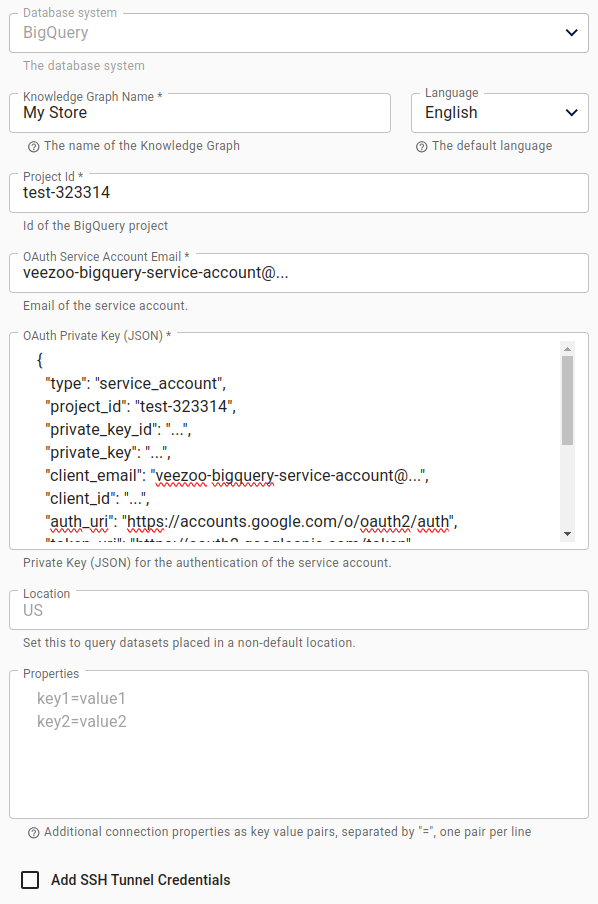
The service account JSON key file you downloaded from GCP will look like this (with your actual values):
{
  "type": "service_account",
  "project_id": "your-gcp-project-id",
  "private_key_id": "abc123def456...",
  "private_key": "-----BEGIN PRIVATE KEY-----\nMIIEv...your-private-key...\n-----END PRIVATE KEY-----\n",
  "client_email": "veezoo-bigquery@your-gcp-project-id.iam.gserviceaccount.com",
  "client_id": "123456789012345678901",
  "auth_uri": "https://accounts.google.com/o/oauth2/auth",
  "token_uri": "https://oauth2.googleapis.com/token",
  "auth_provider_x509_cert_url": "https://www.googleapis.com/oauth2/v1/certs",
  "client_x509_cert_url": "https://www.googleapis.com/robot/v1/metadata/x509/veezoo-bigquery%40your-gcp-project-id.iam.gserviceaccount.com"
}
Upload this JSON key file in the Veezoo configuration and set the Location field to match your BigQuery datasets (e.g., US, EU, or a specific region like us-east1).
If the desired datasets are not shown, check the location of the datasets in the BigQuery console and add it to the "Location" field.
Querying Across Multiple Projects
BigQuery allows a single query to reference datasets from several GCP projects. If your data is spread across multiple projects, list the extra project ids (comma-separated) in the Additional Projects field of the connection. Their datasets then show up in Select Data as project-id.dataset folders, next to the datasets of the main project.
Queries keep running in the main project, which remains the single billing and quota project. This affects which roles the service account needs where:
| Project | Required Roles |
|---|---|
| Main project | BigQuery Data Viewer, BigQuery Metadata Viewer, BigQuery Job User (as above) |
| Each additional project | BigQuery Metadata Viewer at project level (required for listing the project's datasets), plus BigQuery Data Viewer — at project level, or granted on the individual datasets that should be queryable |
No job-creation permissions are needed on the additional projects.
If project-level metadata access on the additional project is not an option, you can alternatively point the Restrict to Dataset field at a qualified dataset such as other-project.dataset. Note that this restricts the whole connection to that single dataset.
Troubleshooting
Permission Errors When Running Queries
If you encounter errors like Access Denied: Project [project-id]: User does not have bigquery.jobs.create permission or similar permission errors when trying to run queries:
-
Verify the BigQuery Job User role is assigned: Ensure the Service Account has the
roles/bigquery.jobUserrole at the project level. This role is required to create and run query jobs. -
Check where permissions are granted:
- If data access roles (Data Viewer, Metadata Viewer) are granted at the dataset level, the Job User role must still be granted at the project level.
- Job creation permissions cannot be granted at the dataset level.
-
Organization policies: Some GCP organizations have policies that restrict default permissions. Contact your GCP administrator to verify that the Service Account can create jobs in the project.
Datasets Not Appearing
If datasets are not visible in Veezoo:
- Verify the Service Account has BigQuery Metadata Viewer access to the datasets.
- Check that the correct Location (region) is specified in Veezoo's connection settings.
- Ensure the datasets exist and are not empty.
Additional Resources
For more information on BigQuery IAM roles, see the Google Cloud BigQuery access control documentation.