
Scheduling & Alerts
Deliver boards and agent results to Email, Slack or Microsoft Teams on a schedule - or turn a schedule into an alert that only fires when a condition is met.
Instead of opening Veezoo to check your numbers, you can have Veezoo come to you: Boards and Agents can run on a schedule and deliver their results to Email, Slack or Microsoft Teams. With free-text send conditions, a schedule becomes an alert that only notifies you when something is worth your attention.
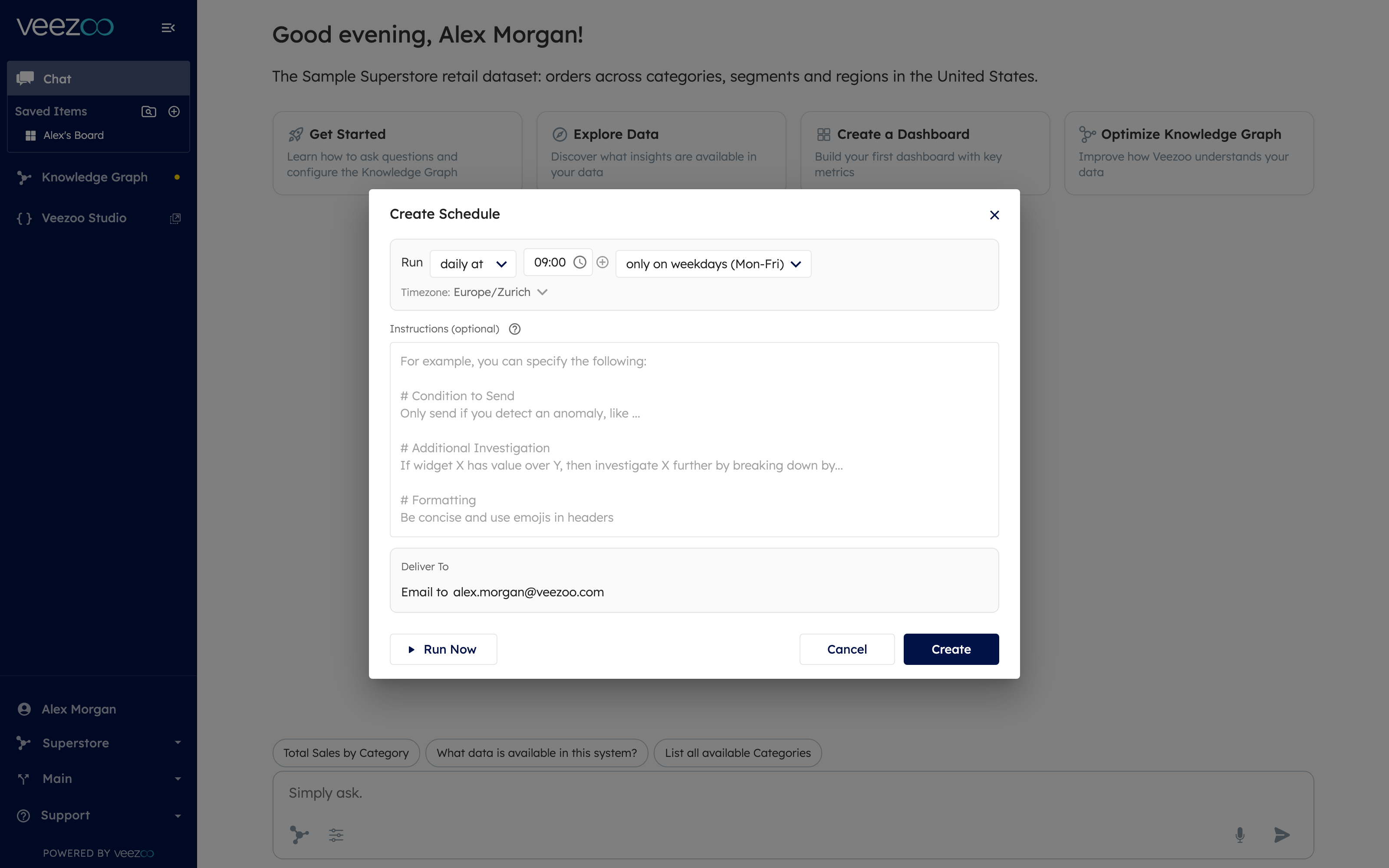
Scheduling a board
- Open the board and click the Schedule button in the board footer.
- Configure when it should run and where it should be delivered (see below).
- Click Create Schedule.
On every run, Veezoo refreshes the board's widgets, summarizes the results and sends them to the configured channel. You can change a schedule later via Edit Schedule / Update Schedule, or remove it with Delete Schedule.
Scheduling an agent
Agents - reusable analyses defined by instructions - can be scheduled the same way. In the agent dialog, choose Add Schedule (or Edit & Schedule Agent) and configure timing and delivery. On each run, the agent executes its instructions from scratch and sends its findings to the chosen channel.
Schedule configuration
Schedules are defined as a simple sentence - "Run daily at 09:00" - with these options:
- Frequency:
- Daily - every day, or only on weekdays (Mon-Fri).
- Weekly - on a specific day of the week.
- Monthly - on a specific day of the month.
- Times of day: one or more times per day. Use the plus button to add additional times - for example a morning and an end-of-day delivery.
- Timezone: every schedule has an explicit timezone, so "9:00" means 9:00 in the timezone you pick, independent of server locations and daylight saving time. One click sets it to your own timezone.
Delivery channels
Under Deliver To, choose where the results should go:
- Email - sent to your email address.
- Slack - as a direct message to you, or posted to a channel. If Slack is not connected yet, use + Connect Slack. See Slack Integration.
- Microsoft Teams - as a direct message, or posted to a channel of a team you select. See Microsoft Teams Integration.
Run Now
Use Run Now to trigger a schedule immediately. This is the easiest way to test that the delivery channel works and that the output looks the way you want, without waiting for the next scheduled run.
Turning a schedule into an alert
Every schedule has an optional free-text instructions field - Instructions for boards, Send Conditions & Format for agents. Whatever you write there is interpreted by Veezoo on each run, which lets you turn a plain delivery into a smart alert:
-
Send conditions - only deliver when something is noteworthy:
"Only send if you detect an anomaly in any of the widgets."
"Only send if revenue exceeds $10,000."
If the condition is not met, nothing is sent - no noise in your inbox or channel.
-
Follow-up investigation - tell Veezoo what to dig into before reporting:
"If new signups dropped more than 10% week-over-week, investigate further by breaking signups down by country and acquisition channel."
-
Formatting - control how results are presented:
"Be concise, lead with the three most important changes, and use emojis in headers."
You can combine all three in one instruction, for example:
# Condition to Send
Only send if you detect an anomaly, like a sudden drop or spike in any KPI.

# Additional Investigation
If revenue is down versus last week, break it down by region and product line.

# Formatting
Be concise and use emojis in headers.
Leave the field empty to always deliver with default formatting.
Next steps
- Boards - build the board you want delivered.
- Agents - define reusable analyses worth scheduling.
- Slack Integration and Microsoft Teams Integration - connect your delivery channels.