
Customizing Veezoo's Look
The look of Veezoo's main interface can be customized with a theme in order to align user experience with your corporate design and strengthen the recognition of your brand.
In particular, the Settings page in Veezoo Admin provides a simple interface to configure the main colors and logos used in the Veezoo app.
Configure the Theme
Assume we would like to customize Veezoo's look to match the colors of our hypothetical "star" company:

To this end, we navigate to the Settings page in Veezoo Admin, where we find the theme configurator:
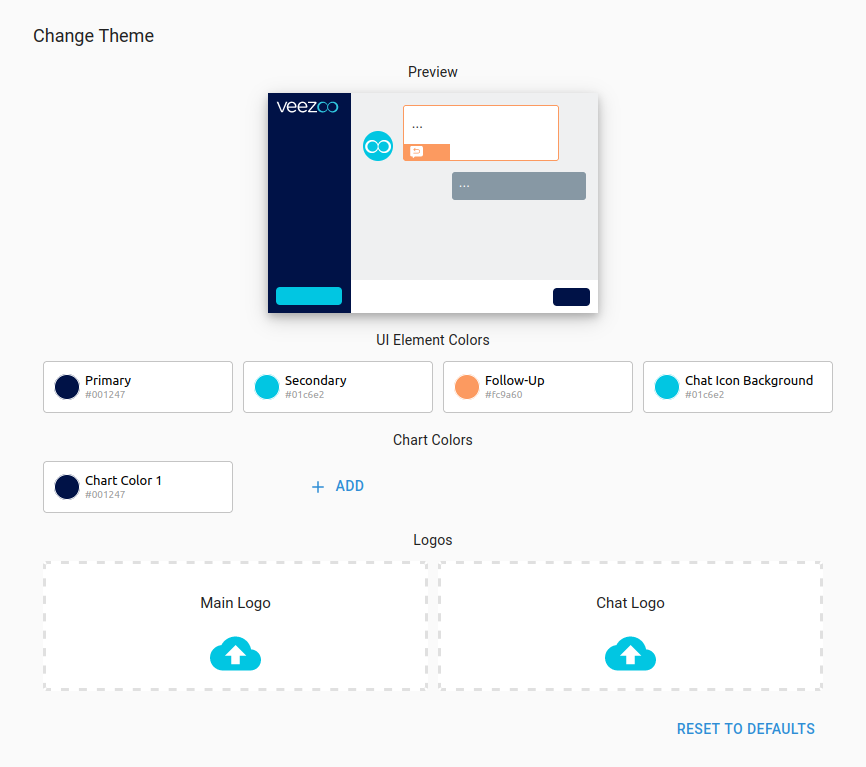
UI Element Colors
First, we configure the primary color by clicking on the corresponding color edit button. In our example, we set it to the dark red color used in our logo.
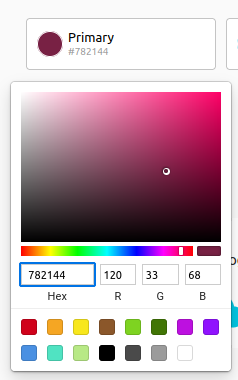
Next, we continue to set the secondary color and follow-up colors analogously. The theme preview instantly reflects our changes, allowing us to quickly get a feeling of the result.
Chart Colors
When creating a single-item chart (such as a plot containing a single line), Veezoo uses the "Chart Color 1" configurable in the theme editor. We recommend setting this color to be identical to the primary color. When producing charts with more items, Veezoo uses colors from a predefined color palette rotation. You can optionally override the colors used for the second, third, etc. item by adding additional colors in the theme configurator.
For example, by clicking the "Add" button, we add two additional colors matching our brand to the configuration. You can always delete additional colors using the remove button.
Logos
Finally, we upload our main logo (to be shown in the top left corner of Veezoo) and a smaller chat logo (to be used as an avatar in the chat view) using the two controls at the bottom. You can simply drag-and-drop image files from your file explorer into the controls.
Because our chat logo doesn't go well together with the predefined Chat Icon Background, we adapt the color appropriately.
The resulting configuration looks as follows:
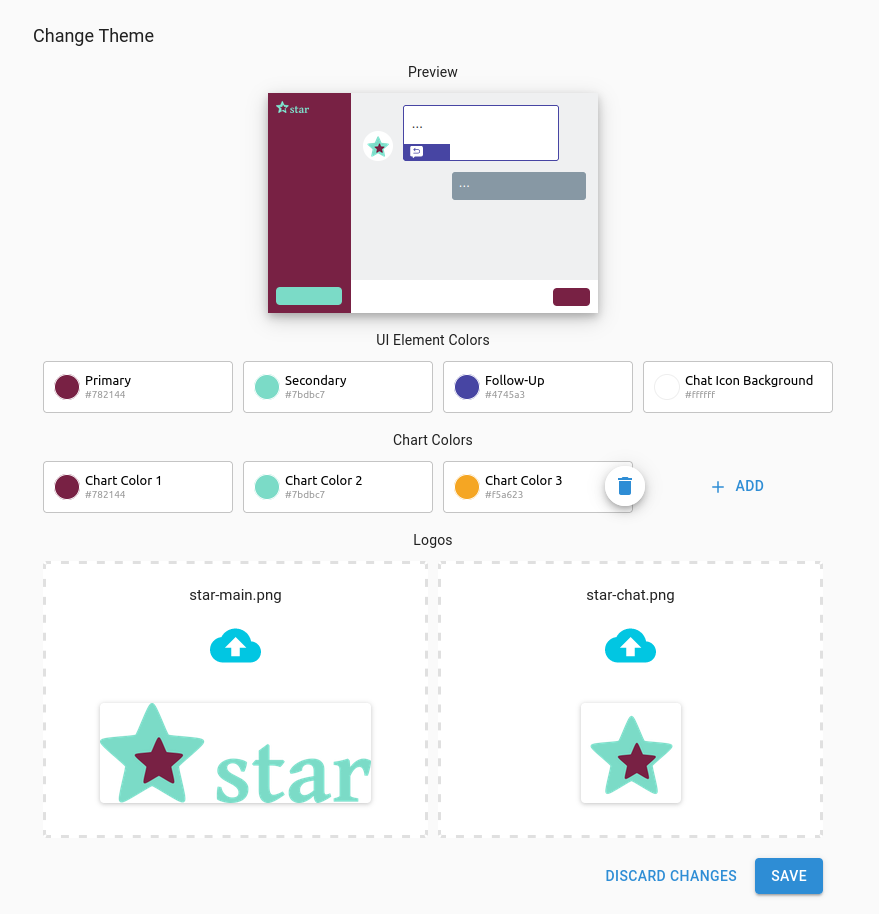
Once we are happy with the configuration, we use the "Save" button to apply the changes.
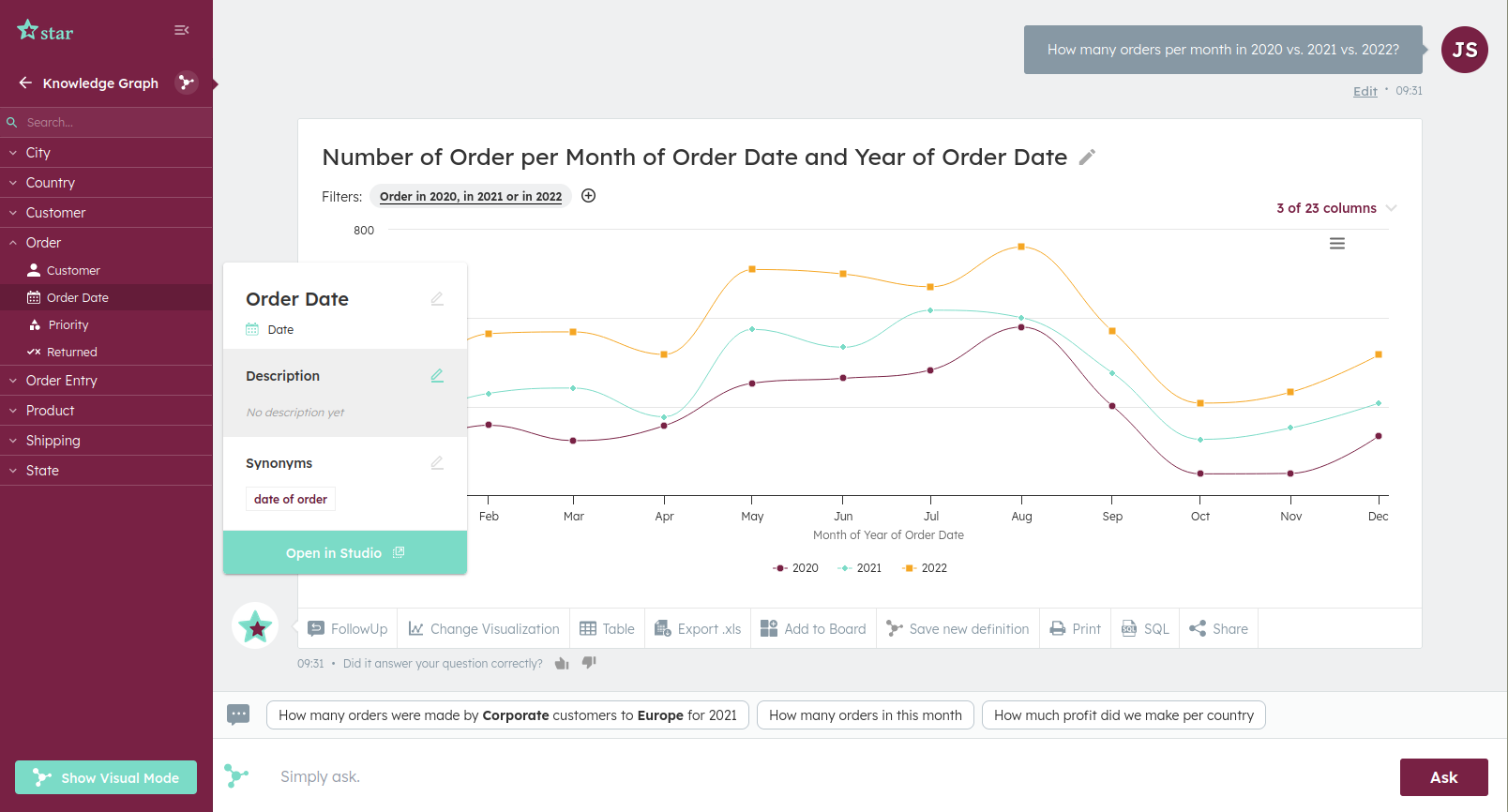
Result
Our users will be stunned by the result!
Resetting the Theme
You can reset the theme to the default configuration using the "Reset to Defaults" button at the bottom of the theme configurator.