
Exporting & Downloads
Download answer data to Excel, export charts and boards as PNG images, turn canvases into PowerPoint presentations, and print answers or chat history.
Veezoo's answers do not have to stay in Veezoo. You can download the data behind an answer to Excel, export any chart or a whole board as an image, turn a Canvas into a PowerPoint presentation, or print an answer.
Downloading data to Excel
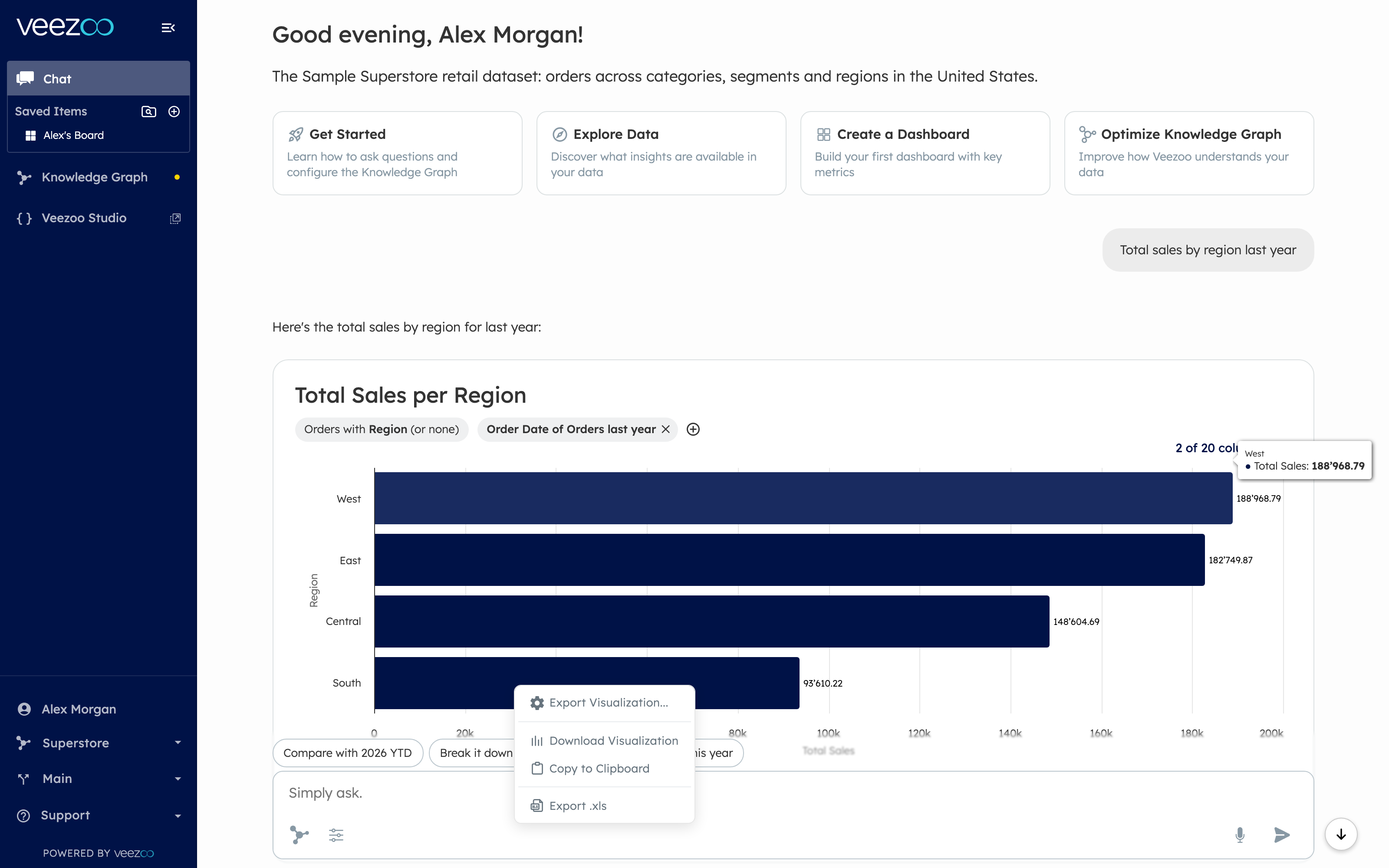
Every answer with a result table can be downloaded as an Excel file:
- Below the answer, open the export options and choose Download Excel (also shown as Export .xls).
- Veezoo downloads the result as an
.xlsfile containing the answer's data.
This exports the data you see - with your filters and your data permissions applied - so it is safe to use for further analysis in a spreadsheet.
Exporting a chart as PNG
To get a picture of a single visualization, open the export options below the answer and choose the image export. The Export Visualization dialog gives you full control over the output:
- Size Presets - common formats like 800x450 (16:9), 1024x768 (4:3), 1280x720 (16:9) and 1920x1080 (16:9), or keep the current size.
- Custom Dimensions - enter exact width and height in pixels, optionally with a locked aspect ratio, or drag the edges of the live preview to resize.
- Include in Export - toggle whether the Title and active Filters appear on the image.
- Copy to Clipboard - copy the image directly, ready to paste into a chat or slide.
- Download Visualization - save the image as a PNG file.
The dialog shows a live preview, so what you see is exactly what you get.
Exporting a board as PNG
Whole boards can be exported the same way: open the board's export option to bring up the Export Board dialog. It offers the same controls as the chart export - size presets (up to 2560x1440), custom dimensions, a live preview, title/filter toggles, Copy to Clipboard and Download Board.
The exported image renders the full board with all widgets and current data - useful for status updates, wikis and presentations.
Exporting a Canvas to PowerPoint
Slide-style Canvases can be exported as a real, editable PowerPoint file: choose Export to PowerPoint in the Canvas actions menu, and Veezoo creates a .pptx in which text and layout remain editable objects - not screenshots. Presentations of up to 50 slides are supported. See Canvases for details.
Printing
For a paper-friendly version (or a quick PDF via your browser's print dialog), use the print option below an answer:
- Print this Answer - prints the single answer, including its visualization.
- Print Chat History - prints the entire conversation.
Canvases have their own print action in the Canvas actions menu.
Next steps
- Boards - assemble the charts you want to export.
- Canvases - richer reports with PowerPoint export.
- Scheduling & Alerts - deliver results automatically instead of exporting by hand.