
Boards
Create, edit and organize boards - live dashboards built from your saved charts - and keep exploring them with follow-up questions.
A board is a grid of live widgets - charts, tables and numbers - built from questions you have asked Veezoo. Boards are also called dashboards, and you may see both terms in the interface. Every widget stays connected to its underlying question, so whenever you open a board, the widgets are filled with up-to-date data from your database.
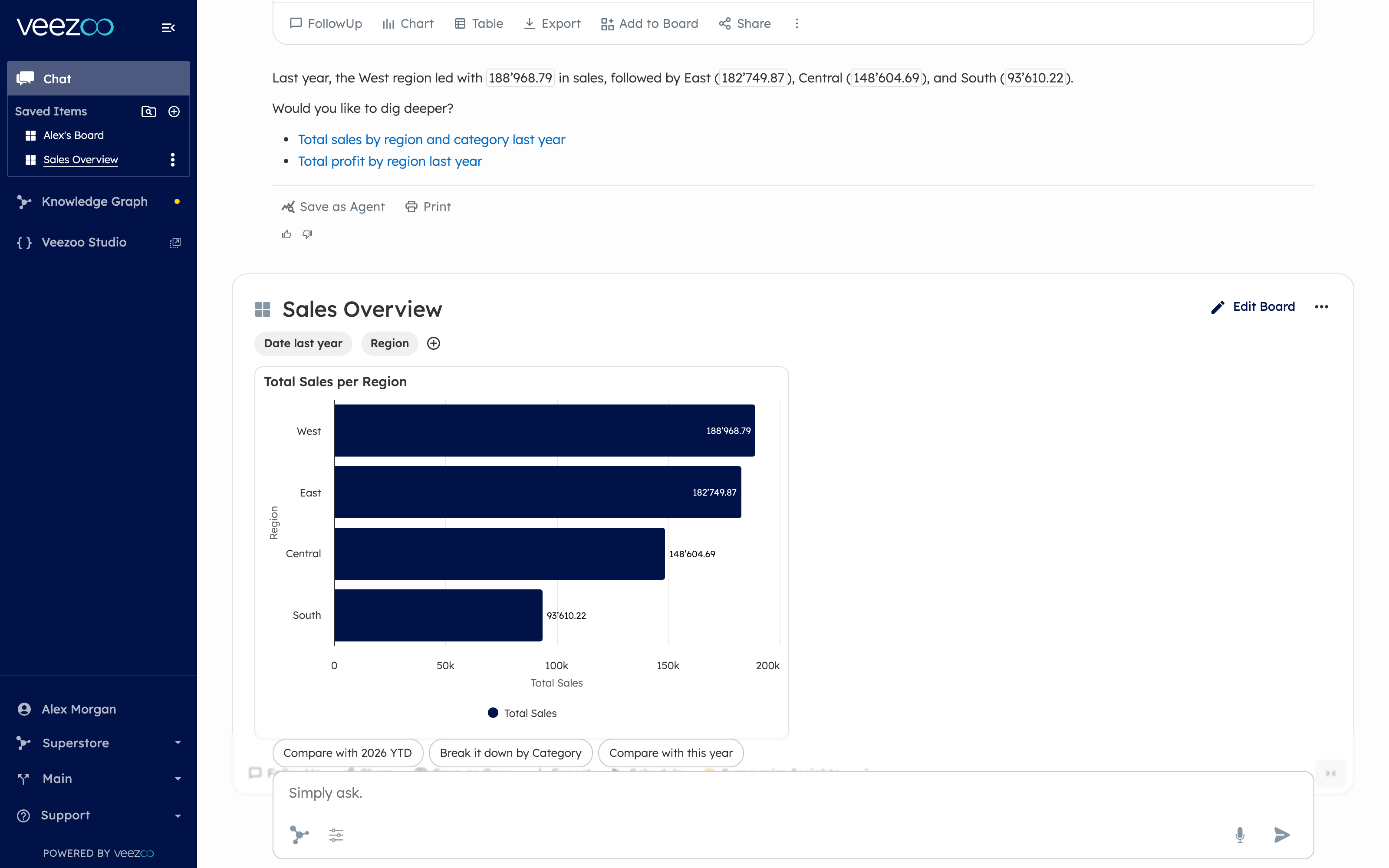
Creating a board
There are two ways to create a board: ask Veezoo to build one for you, or assemble one yourself from answers in the chat.
Ask Veezoo to build one
Simply describe the dashboard you want in the chat:
"Create a dashboard for our monthly sales performance by region"
Veezoo runs the necessary queries, picks suitable visualizations and assembles the widgets into a board for you. You can then refine it further - ask for additional widgets, different breakdowns or changed filters.
Add charts from the chat
Any answer with a visualization can be pinned to a board. Below the answer, click Add Chart to Dashboard. You can then choose:
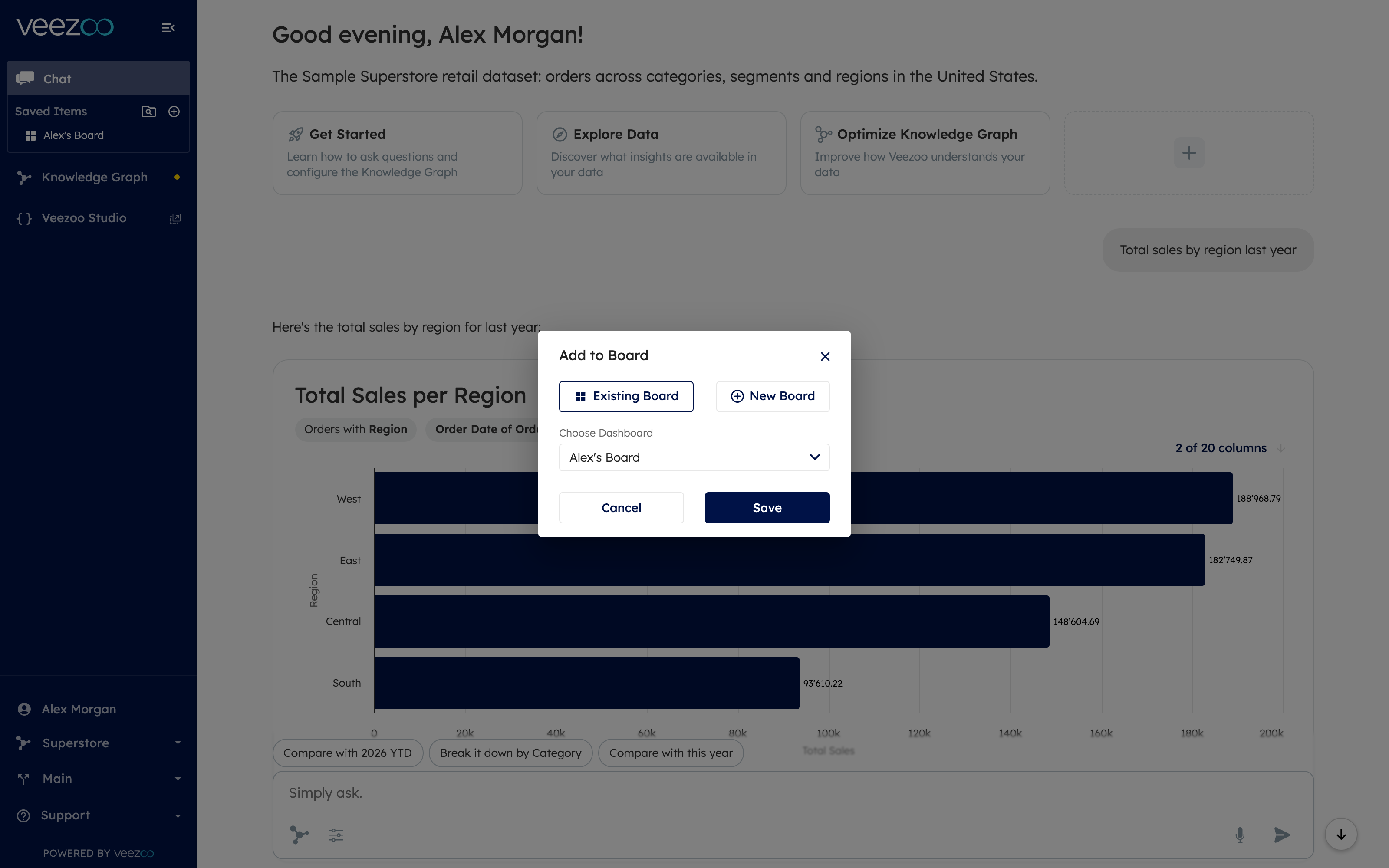
- New Board - creates a fresh board containing this chart.
- Existing Board - adds the chart as a new widget to a board you already have.
The widget keeps the question behind it, so it always shows current data - not a static snapshot.
Editing a board
Open a board from the sidebar to edit it:
- Rearrange widgets by dragging them to a new position on the grid.
- Resize widgets by dragging their edges or corners.
- Rename the board or individual widgets by clicking their titles.
- Delete a widget via its menu, or delete the whole board from the three-dot menu in the sidebar.
You can also ask Veezoo to make changes for you, for example "add a widget showing churn by month to this board".
Asking follow-up questions
Boards are a starting point for exploration, not a dead end:
- On a single widget: ask a follow-up question on a widget to drill into it - for example "only for Switzerland" or "break this down by product". The chat shows which widget your question refers to.
- On the whole board: ask a follow-up question on the entire board, and Veezoo considers all widgets as context - useful for questions like "summarize the key insights on this board" or "which of these metrics changed the most last month?".
See Conversations & Follow-Ups for how follow-up questions work in general.
Organizing with folders
The sidebar lists all your saved items - boards, canvases and agents. To keep things tidy:
- Click Add New in the sidebar to create a New Board or a New Folder.
- Drag items into folders to group them, for example by topic or team.
- Rename or delete folders via their three-dot menu. Deleting a folder deletes its contents, so Veezoo asks for confirmation first.
Shared boards and subscriptions
Boards can be shared with individual users, groups or your whole organization, with view or edit access. Boards shared organization-wide do not clutter everyone's sidebar automatically - instead you subscribe to the ones you find useful via the Browse Shared Items window in the sidebar.
See Sharing Boards & Items for the full guide, including roles, subscriptions and default sharing options for Creators and Admins.
VKL boards
Creators can put a board under version control by selecting Transform to VKL Board in the board's three-dot menu. The board then becomes part of the Knowledge Graph as code:
- It can be edited by all Creator users in Veezoo Studio, with full Git history.
- It is available in development branches.
- Editing via the regular board UI is locked - changes go through Studio instead.
- The original owner ceases to be the owner; the board is shared with its roles or with everyone who has access to the Knowledge Graph.
See VKL Boards for how VKL boards are defined.
Next steps
- Sharing Boards & Items - share boards with users, groups or the whole organization.
- Scheduling & Alerts - get a board delivered to Email, Slack or Microsoft Teams on a schedule, or only when a condition is met.
- Exporting & Downloads - export a board as a PNG image or download widget data to Excel.